n8n is a low-code/no-code visual automation builder. It allows you to create advanced workflows for AI, and connect to external services. It also has a long list of community supported connectors and plugins to expand your capabilities.
You can find n8n's official documentation on self-hosting with Docker here
Prerequisites
You will need 1 Raspberry Pi, running Raspberry Pi OS Lite/Desktop. (Everything we will be doing is in the command line, so the version does not matter.)
You will also need to make sure that docker is installed, and functional on your system.
If you don't have it yet, use the following commands to install:
# Add Docker's official GPG key:
sudo apt update
sudo apt install ca-certificates curl
sudo install -m 0755 -d /etc/apt/keyrings
sudo curl -fsSL https://download.docker.com/linux/debian/gpg -o /etc/apt/keyrings/docker.asc
sudo chmod a+r /etc/apt/keyrings/docker.asc

# Add the repository to Apt sources:
sudo tee /etc/apt/sources.list.d/docker.sources <<EOF
Types: deb
URIs: https://download.docker.com/linux/debian
Suites: $(. /etc/os-release && echo "$VERSION_CODENAME")
Components: stable
Architectures: $(dpkg --print-architecture)
Signed-By: /etc/apt/keyrings/docker.asc
EOF

sudo apt update

# Install from official sources
sudo apt install docker-ce docker-ce-cli containerd.io docker-buildx-plugin docker-compose-plugin
Important Note: I have been using
docker.io, anddocker-compose-v2in the past because those are the supported versions from my OS. Ubuntu ships them, Debian ships them, and Raspberry Pi OS ships them.HOWEVER...
n8n has decided that they do not want to support the default version of Docker because it does not support hardened docker images. Their reasoning for this is commendable, but it creates a hard break between those that can run the latest versions of Docker, and those that get to run the latest versions of n8n If you want to run n8n on older versions of Docker, you must run version
2.3.0or earlier. Version2.3.1of n8n, and later must run using the official Docker Engine.See the Github issue here where they have said they are not going to fix it
If you have installed
docker.ioor other OS-included docker packages before, follow the official docker documentation to remove them before installing the official latest version.
Official Docker installation instructions are here if you get stuck.
You will also want to make sure that you have enough compute, and space available. I am installing onto a Raspberry Pi 4, 8GB model, with 64 GB of storage available.
If you want a second opinion on how to set this up, I found this guide helpful.
Creating docker-compose.yml
In your Raspberry Pi terminal, run the following commands:
mkdir n8n && cd n8n && nano docker-compose.ymlThis will create a nice directory to hold all the n8n data, open the directory, and then create a Docker Compose file inside it using the nano text editor.
Paste the following information into your docker-compose.yml file:
services:
  n8n:
    image: n8nio/n8n:latest
    container_name: n8n
    ports:
      - "5678:5678"
    volumes:
      - ./n8n_data:/home/node/.n8n
    restart: unless-stopped
    # Optional, but allows you to run insecurely for trusted local access.
    # DO NOT use this with n8n exposed to the internet, or on an untrusted network!
    environment:
      - N8N_SECURE_COOKIE=false
This sets up n8n to store its data in the ~/n8n/n8n_data folder on your Raspberry Pi, tells it to always attempt to restart (unless we told it to stop), and exposes port 5678 for the n8n web page.
Save the file with Ctrl + x, and Y to write.
Starting the Docker Container
In the ~/n8n/ directory, where we created the docker-compose.yml file, run the following command:
docker compose up -d && docker psThe first command should pull the n8nio/n8n image, as we specified in our docker-compose file, and then will create and run the container. The -d flag tells docker to run the container "Detached", which means that it's allowed to run in the background.
The docker ps command should show that there is a container running named n8n!
If you are having issues with the container, and would like to check the logs, use this command to view a live feed of the container's logs:
docker logs -f n8n
You can now view your n8n web page from the Raspberry Pi, if you chose a desktop OS, using http://localhost:5678.
To view the web page from a different host, use your Raspbery Pi's IP address, in place of localhost.
If you don't know what your Pi's Address is, run this command in the Raspberry Pi terminal:
ip -aLook for a line that has something like 192.168.1.123, that will be your local ip address.
Then you can view the web page on a different computer using the address http://192.168.1.123:5678. (But make sure to change it to your address.)
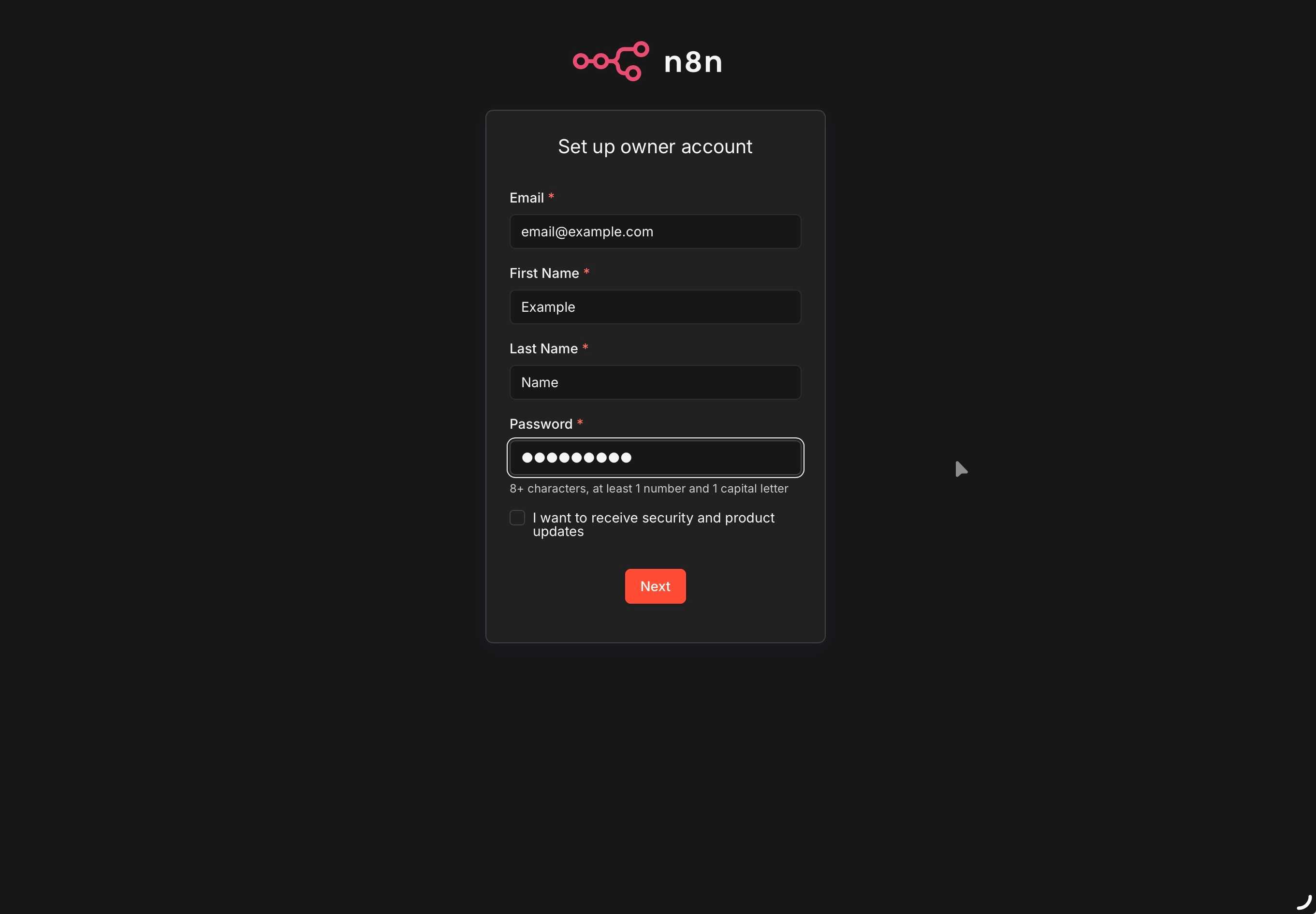
The information here is necessary for you to remember, but does not get sent to n8n. The email can be email@example.com as I have done here, and it will work fine.
One important thing to know is that it may offer you a free license, in which case it will want to email you. You can set the email address to use at that time, instead of whatever email you used here so there is no loss.
You can also always change this information in the Settings section, you will just need to remember your login info, or you will get locked out.
Using n8n
You now have a local, self-hosted n8n install!
In full disclosure, I have actually never used n8n, so this will be a great learning experience for you and me both.
Time to do whatever it is one does with n8n I guess!