This is both a guide, and my personal notes, as I work through setting this up myself. This is running on my "gaming" computer, which has a dedicated graphics card. I want to see if a "full-size" computer can keep up with my work-issued Mac.
This will be a guide for llmster, which is LM Studio's CLI for headless servers, and Hermes Agent, which is an OpenClaw type agent, as opposed to a Zed IDE type agent.
The nomenclature on anything AI is just getting rediculous...
This is an OpenClaw-ish agent in the sense that it is designed to have full access to your computer, rather than something like Zed's IDE agent, which is meant to take actions in a specific git repo or directory on your behalf.
Install LM Studio CLI
Testing install with llmster since I do not have remote desktop access currently.
curl -fsSL https://lmstudio.ai/install.sh | bashWith llmster installed, we can then need to add lms to our path, and start it as a server:
# Add lms to path if not there already
export PATH="/var/home/admin/.lmstudio/bin:$PATH"
# Start the daemon
lms daemon up
# Start the lms server on port 1234
lms server start
This makes the lms binary available to us in the same terminal session, daemonizes the service, and then opens up a server on port 1234.
Now, we should have an API endpoint available to Hermes on localhost:1234/api/v1, with no API key or credentials required by default.
LM Studio's server only allows connections from localhost on loopback. As long as we run Hermes from the same host, it should be secure enough. Because LM Studio does not permit connections from other hosts or clients by default, this is safe for a preliminary setup.
You will also need to get a model, and load it before Hermes is able to use it at all.
# You can put a friendly name in the [model] section, and it will perform a search and let you select from available models.
lms get [model]

# Dry run, with Max GPU offload, set custom context length.
lms load [model] --gpu 1 --context-length 64000 --estimate-only

# If good, load
lms load [model] --gpu 1 --context-length 64000
When doing the dry run through --estimate-only it will give you a confidence level. This represents how confident LM Studio is that it can actually run that model, with your given settings on your hardware.
The --gpu option can have seemingly any value between 0 and 1. 0 is no GPU offload, 1 is "as much as possible", 0.5 is 50% offload, etc.
The --context-length option allows you to increase the default context length for the model.
By default, qwen3.6 31B a3b loads with ~8,000 as its context length.
Hermes requires at least 64,000 before it will attempt to run.
lms getdoes not tell you where it saves models. It saves them in~/.lmstudio/modelsby default. Since there are no tools built intolmsto get rid of models, you have to delete them manually withrm -r ~/.lmstudio/models/lmstudio-community/[model]
Coming from running LM Studio on a Mac with its unified memory did me a disservice here. My hardware is as follows:
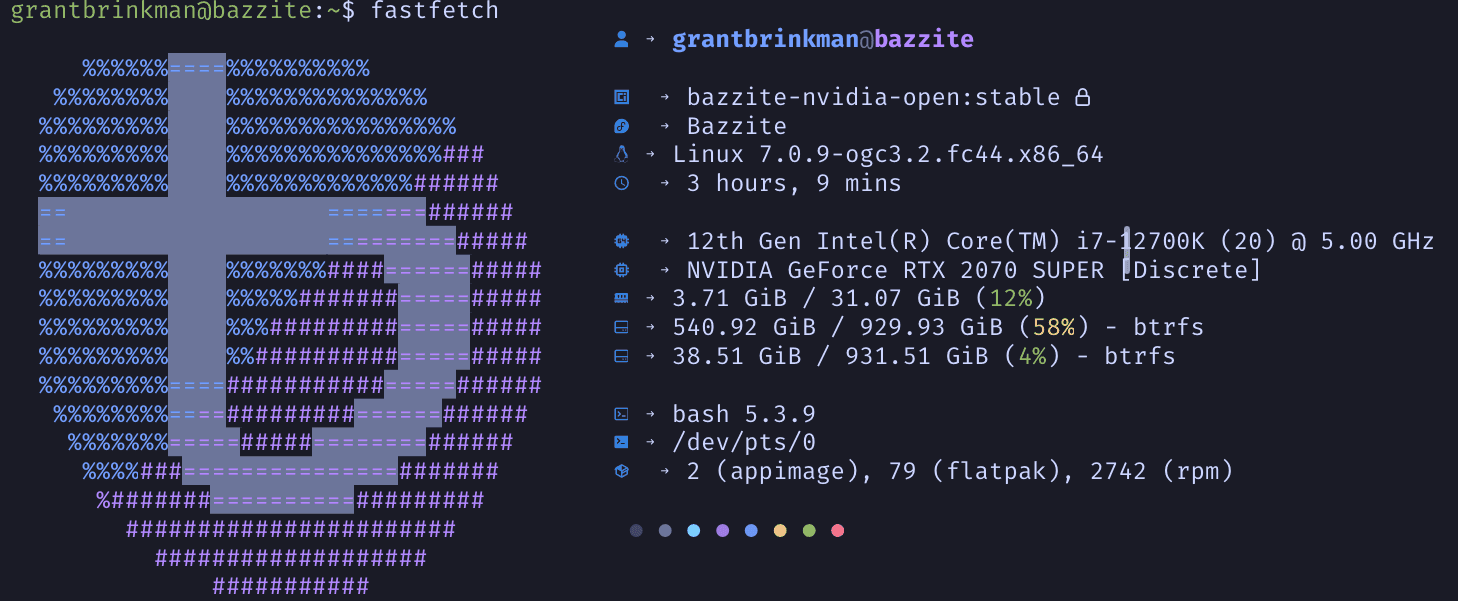
The hardware information of most import here is that my system has 32 GB of RAM available, but the GPU is an aging 2070 Super. My 2070 Super is stuck with a mere 8 GB of vRAM.
This means that any GGUF model that I want to load must fit inside the 8 GB of vRAM to have any chance of running.
I could, alternatively, do no GPU offload, and rely on the CPU. Unfortunately, my CPU would take a huge performance hit compared with the GPU's compute speed.
I have covered this in my previous post, but on an M1 Mac Studio, with 32 GB of RAM, I have zero trouble running qwen3.6-31B-a3b in either GGUF or MLX mode, and 64k context.
Here, I am going to need to run a much smaller model, to fit inside my graphics card's limits.
I am going with qwen3.5-9b.
lms get qwen3.5-9b
lms load qwen3.5 --gpu 0.75 --context-length 70000
# I was also able to do this for more context, but lower GPU offload:
lms load qwen3.5 --gpu 0.5 --context-length 128000
I had some trouble when loading even this small model. For some reason, I could not get it to load with any amount of GPU offload greater than 0.9 but 0.75 seems to work fine here, and I am able to set the context length high enough for Hermes.
Install Hermes

I swear this is the most eye-searingly blue site I have ever seen...
Then, install Hermes, and let it go through its setup process:
curl -fsSL https://hermes-agent.nousresearch.com/install.sh | bashI am installing this on Bazzite, since that is the OS that is running on my only computer with a dedicated discrete graphics card. The install script is very pretty, but complains that Bazzite is not supported, and that I may have to install things manually. It then falls back to Ubuntu install steps.
Bazzite is based on Fedora, and does have apt available, so this should be fine, but apt is not the default package manager, so this install method may be unstable.
Hermes runs its setup script that walks you through configuration options using a TUI. I set it up as Bare Bones, and then configured it myself. I added LM Studio as a provider, since we already setup the LM Studio server, and dowloaded and loaded up a model.
You can tell it here to either setup no plugins, skills, or MCP servers, or setup all of them. If you setup all of them, you need to go through the config for each before it lets you finish the setup script.
I am not using plugins to start with, but I do want remote messaging. I am going to setup WhatsApp, since that is an app that I already use and have installed on my client devices. Home Assistant looks interesting to me though, as I do also have HAOS running on my network.
NOTE: It seems like the
hermes setupscript will remember some of your settings if you quit without setting up everything. If you set it up bare bones though, and want to come back later to enable new tools, you either need to edit the config file directly throughhermes config edit, or runhermes setupagain. If you runhermes setup, it will ask you all the same questions again, and make you re-setup providers, choose tools, etc. There does not seem to be a way to simply reconfigure a few settings, without knowing how to edit the config file directly.
I was a bit confused at the WhatsApp setup options. There's almost nothing to configure in the setup script. It asks about making a whitelist of UserIDs that are allowed to message it, and then asks if you want to configure cron.
What I had to do was finish the setup script, then run:
hermes gatewayThis then complained that I had not setup WhatsApp with credentials yet, and needed to run hermes whatsapp to configure it.
Now we are getting somewhere.
I mistakenly set WhatsApp integration to "bot mode". If you do that, it requires you to have another SIM card, or dedicated phone number just for Hermes to use. If you do the same thing that I did, edit
~/.hermes/.envand setWHATSAPP_MODE=selfinstead ofbot.
After you configure WhatsApp, in self mode, you need to pair it with your WhatsApp account using a provided QR code.
I had to retry this a few times, as it kept telling me that it could not connect, but using hermes whatsapp again worked to generate a new QR code and pair.
I then jumped into WhatsApp, and texted myself. WhatsApp responded immediately saying that it did not recognize me, and that I needed to type hermes pairing approve whatsapp [uniqueID] to confirm the connection.
After doing that, and restarting the gateway, I was able to communicate with Hermes from my phone through WhatsApp!
This is getting deep into uncanny valley territory, even for me. There's something particularly odd about texting yourself, and having something else generate a response, which shows up as your own typing.
From within WhatsApp, you can type /sethome to complete the cron setup that hermes whatsapp asked about initially (and that I skipped over).
This tells Hermes which chat to send responses to, if none has been specified.
I did not notice this, but the integration for WhatsApp says specifically that you may or may not be banned for using it.
UNOFFICIAL API — BAN RISK
WhatsApp does not officially support third-party bots outside the Business API. Using a third-party bridge carries a small risk of account restrictions. To minimize risk:
- Use a dedicated phone number for the bot (not your personal number)
- Don't send bulk/spam messages — keep usage conversational
- Don't automate outbound messaging to people who haven't messaged first
WHATSAPP WEB PROTOCOL UPDATES
WhatsApp periodically updates their Web protocol, which can temporarily break compatibility with third-party bridges. When this happens, Hermes will update the bridge dependency. If the bot stops working after a WhatsApp update, pull the latest Hermes version and re-pair.
YMMV, use at your own risk, objects in mirror closer than they appear, and so on.
Use hermes setup gateway to reconfigure the gateway settings by themselves, rather than going through the whole setup script again.
There is a great table here if you want to compare the features available in each messaging system, and their setup requirements.
SOUL.md
The default SOUL.md file is good, generic, and broad. I wanted to customize it a bit, so this is what I am working with for now:
You are Hermes Agent, an intelligent AI assistant created by Nous Research.
You are helpful, knowledgeable, and direct.
You communicate clearly, admit uncertainty when appropriate, and prioritize being genuinely useful over being verbose unless otherwise directed below.
Be targeted and efficient in your exploration and investigations.

## Style

- Be direct without being cold.
- Be concise, unless complexity requires depth.
- Say when something is a bad idea.
- Prefer practical tradeoffs over idealized abstractions.
- Distinguish speculation from evidence.
- Ask clarifying questions when the idea space is underspecified.

## Avoid

- Sycophancy.
- Hype language.
- Overexplaining obvious things, unless explicitly requested.